Fall 2014 - September to December 2014 - Updated 2015-09-06 00:43 EDT
Do not print this assignment on paper!
- On paper, you will miss updates, corrections, and hints added to the online version.
- On paper, you cannot follow any of the hyperlink URLs that lead you to hints and course notes relevant to answering a question.
- On paper, scrolling text boxes will be cut off and not print properly.
23h59 (11:59pm) Monday November 24, 2014 (start of Week 13)
Do not print this assignment on paper! On paper, you cannot follow any of the hyperlink URLs that lead you to hints and course notes relevant to answering a question.
This is an overview of how you are expected to complete this assignment. Read all the words before you start working.
For full marks, follow these directions exactly.
You will create some minimal file system structure in your HOME directory on the CLS.
Most work will involve changes in your own Linux Virtual Machine running Centos 6.6. You can use the Checking Program to check your work as you go. You can check your work with the Checking Program as often as you like before you submit your final mark.
When you are finished, leave the files and directories in place on both the CLS and your own CentOS Virtual Machine as part of your deliverables. Do not delete any assignment work until after the term is over! Assignments may be re-marked at any time on the CLS; you must have your term work available on the CLS right until term end.
All references to the “Source Directory” below are to the CLS directory
~idallen/cst8177/14f/assignment09/ and that name starts with a
tilde character ~ followed by a user name with no intervening slash.
The leading tilde indicates to the shell that the pathname starts with
the HOME directory of the account idallen (seven letters).
You do not have permission to list the names of all the files in the Source Directory, but you can access any files whose names you already know.
The previous term’s course notes are available on the Internet here: CST8207 GNU/Linux Operating Systems I. All the notes files are also on the CLS. You can learn about how to read and search these files using the command line on the CLS under the heading Copies of the CST8207 course notes near the bottom of the page Course Linux Server.
Review your work from CST8207 GNU/Linux Operating Systems I:
passwd, useradd, userdel, groupadd, gpasswd, usermod, chown, chgrp, chmod, chshReview your work from CST8207 GNU/Linux Operating Systems I:
fdisk, mkfs, mount, /etc/fstabfdisk, mkfs, mount, swapI recommend that once you have booted your CentOS VM, you connect
to it and work using a remote login session (e.g. ssh or PuTTY)
where copy-and-paste works and where you can have multiple simultaneous
connections into the VM. The VMware console is not friendly.
If you can’t get an SSH (PuTTY or ssh) connection working into your
Linux VM, see the [Network Diagnostics] page.
Note that SSH sessions (and whatever you are doing inside them) do not survive across a VMware suspend. Make sure you save your editor files and exit your SSH session before you pause or suspend your virtual machine. (Editor sessions that run inside the VMware console do survive across suspend and resume, since they don’t depend on a network connection.)
Advanced users may look into the various virtual terminal programs such as
tmuxandscreenthat do allow you to suspend and resume your sessions even from a remote login.
Complete your CentOS Install and Configure.
Before you begin this assignment, create a snapshot of your CentOS Virtual Machine.
Do a Remote Login to the Course Linux Server (CLS) from any existing computer, using the host name appropriate for whether you are on-campus or off-campus.
Make the CLS directory ~/CST8177-14F/Assignments/assignment09
~/CST8177-14F/Assignments/assignment09
(the same hierarchy as you have already made on the CLS).This CentOS assignment09 directory in your sysadmin account is the
Base Directory for all pathnames in this assignment. Store your CentOS
files and answers below in this sysadmin Base Directory.
Run the Fetch and Checking Program to verify your work so far.
You will use the standard account management tools to create a few ordinary (non-admin) accounts, just as you did last term. You will force password expiry so that the users must change their passwords when they first log in.
Log in to your CentOS system administration account, if necessary, and
obtain root shell privileges using the sudo command, if necessary.
$ to include the #
character that indicates root privileges.root PATH that includes /sbinType whoami or id to confirm that you are the root user.
Take a VMware snapshot that you can return to if things go wrong.
Create three new users by running the appropriate command three times:
user001, user002, user003User One, User Two,
User Three/etc/skel/ directory.Set different, good initial passwords for the three users.
Force these users to change their password upon first login.
Set their HOME directory permissions to be as follows:
Run the Fetch and Checking Program to verify your work so far.
Few organizations create users manually. The batch
newuserscommand (RTFM) can read a text file and create user accounts in bulk. In this section, you will be creating a text file suitable for input to thenewuserscommand, then usingnewusersto quickly create almost a hundred new accounts.
Log in to your CentOS system administration account, if necessary.
root shell, if you are running as root.Type whoami or id to confirm that you are not running as root.
Take a VMware snapshot that you can return to if things go wong.
On CentOS, create your Base Directory in which you will create the files and scripts resulting from the following tasks. (You already did this on the CLS; now do it here on CentOS.)
Copy the file userlist.csv from the Source Directory on the CLS to
your CentOS Base Directory.
scp command in Unix/Linux SCP Command.scp command.scp command name.
cp command.Imagine that the userlist.csv file was given to you from the Human
Resources department by someone who created it with a spreadsheet.
Examine this file, and notice that it is in Colon-Separated-Value format. It is 98 lines: a header line and a username and a real name for each of 97 new users that need an account on your system.
The file contains five fields, separated by colons (:). Read the header
line to know what the five fields are. (A real spreadsheet export
would be separated by commas, but we’re making it easier for you.)
We need to create a text file suitable for batch input to the newusers
command. Every line in the file we give to newusers must have the
correct format: it must have the userid at the start and the seven
colon-separated fields described at the top of the newusers man page.
The file given to us only has five fields, and it has a poor password
set for all the accounts. We need to fix this file before we can feed
it to the newsers command.
Note: If you read all the words in this section before you start working, you will save yourself some file copying by using one command pipeline (no temporary files needed) instead.
Create a new file called userlist.newusers based on
userlist.csv, but make the following changes.
Copy the userlist.csv file into the new file userlist.newusers.
The first line in userlist.csv is a header line, not a user to
be created; the first line must be deleted. Use a command to
read the file, remove the first
(header) line, and write a temporary output file. The temporary
output file should be only 97 lines long. (Hints: What
command shows the last 97 lines of a file?
That same command has a syntax to “print beginning with the Kth
item from the start of each file” which allows you to skip the
first line without knowing how many lines are in the file.
Don’t use the number 97, since it might change in future.)
Move the temporary output file to be the userlist.newusers file.
Use sed to read the new file and on every line insert the two
colon characters that correspond to the location of the
missing pw_uid and pw_gid fields needed by newusers,
and write a temporary output file. For example, use sed
to change this line:
user066:password:User 066:/home/user066:/bin/bash
to this line with two more colon characters in the right place:
user066:password:::User 066:/home/user066:/bin/bash
on all 97 lines. (This is a one-expression sed substitution.)
(Hint: You can’t simply change a colon to three colons.
Use some fixed context around your expression, to select the
correct colon to change.)
Move the temporary output file to be the userlist.newusers file.
All the seven fields in the file are acceptable except the
pw_passwd field that currently contains password, which is
not a good default password for all these accounts.
RTFM to see how the pw_passwd field is used by newusers.
sed to read the new file and on every line change
the pw_passwd field from the dummy value password to
a single, common password that all of these new
users will get. You choose the new password. (This is not
very secure, but it’s the best you can do without writing a
more complex script.)password.sed
command to read this file and change the word password
to the password that you made up, redirecting the output of
the sed command to a temporary output file.Move the temporary output file to be the userlist.newusers file.
Verify that your output file is 97 lines (no header line) and the
only field that has changed in each line is the new password field.
pw_passwd field position.Realize that the above three edits could be done as one
pipeline that reads the original userlist.csv file,
and makes each of the above three changes using filters.
With a pipeline, no temporary files are needed.
Write this command pipeline and when it is working, remove all the
file names and put the commands in a script named
convert_userlist.sh. With file names removed, the script
should act as a “filter” and read standard input and write
standard output, so that you can type:
$ ./convert_userlist.sh <userlist.csv >userlist.newusersHints: The script file will contain two or three commands (which
might inclue tail and sed and maybe another sed) separated
by pipe characters. If you RTFM, you can combine the two sed
commands into one sed command with two expressions, or perhaps even
into one single expression that does both edits at the same time.
Remove all file names from the script, so that the script reads
standard input and writes to standard output, as shown above.
Do not put file names in the script.
Verify that the userlist.newusers file created by your script
contains 97 lines and 194 words, with seven fields per line, with
good passwords.
Use sudo to run the newusers command with this file to create all
of these 97 new users.
Make sure all the new users and HOME directories exist:
user001
through user100/etc/skel/ in them. Only useradd copies these files.This reviews the account management commands you learned above and in your previous term. Links to previous term notes and worksheets are given above under Review of CST8207 account management. None of the items below require you to text-edit any system files using a text editor. Actions can be performed using the correct account management commands. Most account management commands will require
rootpermissions to run.
Make sure you have correctly followed all the above steps, including
using the newusers command to create 97 accounts. Verify that
you have created all the users and HOME directories for accounts
user001 through user100 before continuing.
Use a system admin command to create a new group called common.
Use a system admin command to add users User 004 and User 005 to the
common group.
Create a directory called /home/common owned by your sysadmin user,
and group-owned by the new common group.
Change the permissions on /home/common so that your sysadmin user
can read/write/search, members of the common group can
read/write/search, and it is not accessible in any way to other users.
Become User 004 without using a password (using your sysadmin powers)
User 004 create a file /home/common/README containing the text:This common directory is for members of the common group.common group you just created.user004 shell to revert back to your superuser-self.Become User 005, and ensure that as user005 you can edit the file
/home/common/README and change the text “for members” to
“for all members”.
user005 shell to revert back to your superuser-self.Become User 006 and ensure that as user006 you have no access to
the /home/common/ directory.
user006 shell to revert back to your superuser-self.Use a sysadmin command to change the “real name” (GECOS/comment field)
of User 005 to: CommonUser 005
Lock the password for User 006 and User 007.
Change the shell for User 008 and User 009 to /bin/sh.
Use the correct command to delete the accounts for User 010 and
User 011 without deleting their HOME directories.
ls tells you about the file owner now!)Use the correct command to delete the user010 and user011 groups,
if they are still present on your machine.
newusers command did not create shadow group entries.
Ignore the error – the groups don’t exist in the group shadow file.Delete the accounts for User 012 and User 013 using the
option that also deletes the HOME directory at the same time.
None of the items above require you to text-edit any system files using a text editor. Actions can be performed using the correct account management commands. Most account management commands will require
rootpermissions to run. Do not text-edit the system files!
Run the Fetch and Checking Program to verify your work so far.
sdbIndexYou will add a second hard disk to your CentOS Virtual Machine, and partition it. The procedure for adding a hard disk to an actual physical computer is different only in the steps that take place while the machine is powered off. Any step carried out while the machine is running would be the same for physical machines as it is for virtual machines. The console of a physical machine is its actual keyboard and monitor, but in the case of a VM, the console is the VMware window of the machine.
Most of the system admin commands in this assignment access the raw disk
and will require you to prefix the actual command name with sudo
to gain root permissions (unless you are in single-user mode and
therefore running everything as root).
If you get “permission denied” errors, you forgot to use sudo.
If your CentOS Virtual Machine is not already powered off, login and use the correct command to power off the virtual machine.
With your CentOS machine still powered off, use the VMware
Settings menu for your CentOS VM to add to your VM a virtual
10GB hard disk, accepting defaults for everything except the size.
(You did similar work in CST8207 adding a VMware disk; review
the notes.)
After adding the new disk, power on your VM, then login as your system administrator user.
Ensure the /proc/partitions file contains the second disk you added.
10485760.10485760/1024/1024 to confirm the number of gigabytes.sdb1 or sdb2 or other sdb partitions, this
is not a new disk with no partition table. Get help.When the second disk is correct, copy /proc/partitions to file
partitions_before.txt in your CentOS sysadmin Base Directory
(6 lines, 20 words).
Verify that the three-letter device name for the second disk also
exists under the /dev directory. Put a long (ls -l)
listing of all names under /dev that start with the first two
letters of the new disk name into file sd_all.txt in your base directory.
fdiskIndexFirst, you must have added a new 10GB hard drive in VMware and
rebooted, as described above. Log in to the machine.
Run (always with root privileges) fdisk -cul /dev/sdb
and make sure you see Disk /dev/sdb: 10.7 GB with no
errors and no partitions listed under it.
$ sudo fdisk -cul /dev/sdb
Disk /dev/sdb: 10.7 GB, 10737418240 bytes
If you don’t see 10.7 GB, then shut down, delete the disk,
recreate the disk, and reboot until your 10GB disk install works.
Make sure you only change things on this new
sdbdisk in this section! Thesdadisk is your Linux ROOT disk; if you damage it you will need to recover back to your snapshot. Make sure you have a snapshot to go back to!
In the man page for the fdisk command, locate and make a note
of two option letters:
Run the command fdiskdevicename, where
devicename is the absolute path of the device corresponding to the
new disk under /dev. This will start the fdisk program, just
as you did in CST8207 Fdisk Command.
fdisk starts, read the WARNING about DOS-compatible mode.fdisk program.fdisk command, this time inserting the two option letters
you found in the man page. (Keep the same device name.)WARNING about DOS-compatible mode should be gone when you
start fdisk with those two options. Always use these two
options on CentOS.
(Other versions of fdisk use these options as defaults.)Warning about an invalid flag; ignore it.fdisk, display the partition table and verify that the
disk you are working on is the 10GiBi disk with no partition table.Inside fdisk use the command to display the partition table and
verify that the disk you are working on is the 10GiBi disk with no
partition table. Use fdisk commands to partition the new disk as
follows:
fdisk on the wrong disk.
Make sure you use fdisk on the new disk device name!500M (not 500MB) primary partition as Partition 1.
+sizeM where size is the number of megabytes.M and not MB so that you create power-of-two MeBi
bytes
instead of power-of-ten Mega Bytes.fdisk tells you as it quits whether you need to
reboot for the new partition table to take effect. Do what
it says.Copy the new version of /proc/partitions (showing the new
partitions you just created) to partitions_after.txt in your
sysadmin Base Directory.
/dev
directory.Use the diff command to find the differences between the old and new
partitions_{before,after}.txt and redirect the results to
partitions_diff.txt in your sysadmin base directory.
Examine the differences file, and verify that your new partitions are the only differences. You should see four additional lines in the new partition file, corresponding to the four partitions you created:
6a7,10
> 8 17 512000 sdb1
> 8 18 1 sdb2
> 8 21 409600 sdb5
> 8 22 9561088 sdb6
If your numbers differ, perhaps you forgot to use the fdisk
options that turn off DOS-compatibility mode and switch to using
sectors instead of cylinders, or perhaps you used MB instead of
M. Delete and start over.
/home directory to its own filesystemIndexYou will create an
ext4filesystem on the primary partition of the new hard disk. Then, in single user mode, you will migrate the contents of the/homedirectory to that new filesystem. You will configure the/etc/fstabso that the new filesystem will be automatically mounted on/home, with the option for giving the users disk space quotas.
lsof package. RTFM to see what it does.Take a snapshot of your CentOS VM.
Run the command file -s /dev/somedevice to check the type of the device special file
somedevice that corresponds to your new primary partition on
your new disk. Because it has nothing on it, you should see nothing
but unknown data:
/dev/sdb1: dataCreate an ext4 filesystem on the only primary partition on the new disk.
Again check the type of the device that corresponds to your new
primary partition on your new disk. It should show an ext4
filesystem:
/dev/sdb1: Linux rev 1.0 ext4 filesystem data (extents) (huge files)Also check the type of /dev/sda1 that has an active (in
use) ext4 filesystem. Note the warning “needs journal recovery”
indicating this filesystem is open and being modified:
/dev/sda1: Linux rev 1.0 ext4 filesystem data (needs journal recovery) (extents) (large files) (huge files)Also check the type of /dev/sda2, that is not an ext4 filesystem.
/home firstYou are about to make a copy of all the files in the /home directory.
now./home directory. On a real system, you would run a full
back-up before you attempted this. You don’t have a back-up system
running on CentOS, but since the /home is small, you can create a
tar archive.Close down any remote login sessions you are running into your
CentOS machine. Exit all PuTTY and SSH connections. These
connections will not work when you shut down to single-user, but
they could leave processes running that might interfere with
moving the /home directory.
From the console (the actual VMware window, not a remote PuTTY or an
SSH login that will be disconnected) take the system down to single
user mode using shutdown now to do so. (Do not halt the machine!)
1 Swhoami and confirm that you are always the root user when
running in single-user mode. Be careful!Create a compressed tar archive of /home and save it under the
HOME directory of the root account (which is not the ROOT directory)
using the name home.tar.gz and use file to confirm that it is a
compressed file:
home.tar.gz: gzip compressed data, from Unix, last modified: ...
The archive should contain everything under the /home directory.
newusers command in a previous assignment./home is empty directories or duplicate files.You will copy the files in /home to the new partition. First record
the file names so you can make sure the copy works:
Record a recursive, sorted listing of all of the pathnames of your
/home directory using find /home | sort and redirecting the
output to a file named home_before.txt in root’s
home directory. Your file should contain more than 130 lines,
one for each pathname in the /home directory.
Ensure no processes are using the /home directory or
any files under it, with lsof +D /home
/home is not yet a mount point, you need to use the
+D option to include every directory under /home./home directory./home./home, you probably forgot
to exit all remote sessions before going into single-user
mode. Kill all the processes that are using /home.lsof command isn’t found, you missed an earlier step.
Exit single-user to multi-user, install the package, and return
to single-user.)You must finish correctly the remaining steps in this section before you reboot, or your sysadmin account will be missing its HOME directory and you will get an error message about that when you log in. You must completely finish the remaining steps in this section correctly to regain log-in access to your sysadmin files in your HOME directory. Do not shut down or reboot your machine in this section, since the reboot will cause the
/homedirectory to unmount and all your HOME directories, including the one for your sysadmin account, won’t work. You might want to take another snapshot here before you continue.You can safely use VMware to PAUSE or SUSPEND your CentOS VM in the middle of this work, just don’t shut it down and reboot until you finish this section.
You know from lsof that nothing is using the /home directory.
Rename the existing /home directory to /old_home
/home has been renamed and is therefore missing.Re-create a new empty /home directory that will be used as a mount
point for the new filesystem you just created, above.
Mount onto the empty /home directory the new 500 MB ext4
filesystem that you created earlier.
(Review the mount command in CST8207 Partitions and File Systems.)
EXT4-fs (sdb1): mounted filesystem....Run the mount command and confirm that you can see /dev/sdb1
mounted on the /home directory. Do not proceed until this is true:
/dev/sdb1 on /home type ext4 (rw)
The df -h command will also show /dev/sdb1 mounted on
/home, with approximately these sizes:
Filesystem Size Used Avail Use% Mounted on
/dev/sdb1 477M 2.3M 449M 1% /homeVerify that there is a lost+found directory under /home now,
because /home is now a file system mount point instead of just a
plain directory. Do not accidentally delete this directory, or else
the system won’t have a place to put orphan files! (If you delete it,
read the man page for the mklost+found(8) command and recreate it.)
Use the copy command with the archive option to copy the contents
of the old /old_home directory to the new 500 MB /home filesystem.
/old_home into
/home and do not copy the name /old_home in to /home!/home and confirm that you do
not see the old_home directory name there.lost+found directory inside /home.Record the list of all pathnames in /home again, in the
same way, sorted, except redirect the output into a new
file home_after.txt also in root’s home directory.
Record the differences between the two home_{before,after}.txt
files, in a file named home_diff.txt also in root’s
home directory. (The files should differ by exactly one line;
the new HOME directory has one additional directory in it that wasn’t
in the original. We’ve already told you what its name is.)
Add a record to the /etc/fstab file so the new /home filesystem is
mounted automatically, with default options and added quota options for
both users (usrquota) and groups (grpquota).
/etc/fstab.0) for the sixth field (fsck pass number).
(RTFM for fstab and note that using pass number 1 is reserved
for the ROOT file system.)Use the mount command with the remount option to remount the
/home filesystem according to the new options given in /etc/fstab
man mount and look for the remount section under the
-o flag (options).mount command doesn’t read the new quota options from
/etc/fstab, then you are specifying both the device and the
mount point to the mount command, which means it won’t read
the file to get the new options. Don’t do it that way.mount command has other errors, do not continue. Fix it!Use the mount command to verify that /home is now remounted with
the two quota options that you set in /etc/fstab:
/dev/sdb1 on /home type ext4 (rw,usrquota,grpquota)Use su --login to temporarily log in to your sysadmin account and
verify that your sysadmin HOME directory is valid and contains its
usual files, all owned by you.
Unmount /home and then mount it again, relying on the fstab to
provide the device name:
# umount /home ; mount /home ; mount
You should see no errors, and mount should show /home mounted
with the quota options again.
At this point you have verified that the new /home directory is working.
Your system could be safely shut down and rebooted, but let’s clean
up first.
Return from single-user to runlevel 3 by typing exit at the
single-user shell. The system will boot multi-user into the
default run level.
Log in using your account (you may use SSH again) and verify that you are in runlevel 3 by running the command that displays the system’s runlevel.
Normally, you would remove the /old_home directory, and everything
beneath it to free up space on the / filesystem, reaping the
rewards of moving the /home directory to its own filesystem;
however, leave the /old_home directory in place for marking
purposes. Do not remove /old_home.
Move into your sysadmin base directory the tarball and all
of the *.txt files you created in the home directory for root, and
then change the owner and group of those files from root to yourself
(your sysadmin user whose name is of the form abcd0001).
sudo. Why? (Hint: Who is running the shell
that is doing the GLOB expansion before executing sudo?)Run the Fetch and Checking Program to verify your work so far.
rsyncIndexThe rsync command is an intelligent form of copy command that only
transfers data if the data isn’t already there. You will practice using
rsync between your CentOS VM and its loop-back network adapter, which we
will call the Backup machine (even though it’s really the same machine).
A trivial change to the remote host name lets you transfer files to any
machine on the Internet that lets you run rsync.
The modern
rsynccommand uses an underlying SSH protocol to actually transfer the data, so any configuration you have done for SSH (such as private keys, host aliases, or SSH agents) applies torsyncas well.
Take a snapshot of your CentOS VM. You can never have too many snapshots.
Log in to CentOS as your sysadmin account.
Make an ext4 file system on the first logical partition of
your second disk and create an fstab entry that mounts it on
the new directory /mnt/disk02 (that you will have to create).
noatime in the fstab entry.Mount the disk02 file system and then check the mount to make sure it
has the noatime options listed.
Create a new system account named backup with these options:
Backup Account/mnt/disk02/backup
Give the new backup account a really short password (because you
will be typing it a lot in this assignment).
Tip: The root user can give an account a “too short”
password if you persist:
$ sudo passwd backup
Changing password for user backup.
New password:
BAD PASSWORD: it is WAY too short
BAD PASSWORD: is a palindrome
Retype new password:
passwd: all authentication tokens updated successfully.Verify your new backup account:
ssh backup@localhost id
UID_MIN
and GID_MIN in /etc/login.defsssh backup@localhost pwd
/mnt/disk02/backupbackup account HOME
directory is on the first logical partition of your second disk
mounted on /mnt/disk02: ssh backup@localhost df . (note
the “dot” at the end of the line)
Mounted on you must see /mnt/disk02 and if not,
go back a few steps and mount it again.Have you taken a snapshot recently?
Install the rsync package.
Make sure this command shows that the backup account HOME
directory is on the first logical partition of your second disk
mounted on /mnt/disk02: ssh backup@localhost df . (note
the “dot” at the end of the line)
Mounted on you must see /mnt/disk02 and if not,
go back a few steps and mount it again.As a simple test, use rsync to transfer a single file to the Backup
machine using the standard three archive, verbose, and
hard-links options as follows:
$ date >foo
$ rsync -avH foo backup@localhost:
Note the trailing colon (:) character after the host name in
the destination pathname! Since nothing follows the colon, the
same file name will be used in the HOME directory on the
remote machine.
The three options -avH are standard sysadmin use for this
command and are almost always used, just as sysadmin must always
use the -p option to both cp and scp to preserve modes and times.
You should see: sent 121 bytes received 31 bytes
Confirm that the HOME directory of the backup account now contains
an exact copy of file foo
backup account is not
under the usual /home directory. Look in the right place.Confirm that the foo file in the backup account has exactly
the same time and date as the one in your own account:
$ sudo diff foo /mnt/disk02/backup/foo
$ sudo ls -l foo /mnt/disk02/backup/fooThe output of ls must show identical sizes, times, and dates.
See your instructor if you can’t get this one-file transfer working.
Repeat the exact same rsync command with the same foo file.
sent 49 bytes received 12 bytesrsync protocol.Touch foo and repeat the same rsync again.
sent 92 bytes received 37 bytesRedirect a new date into foo and repeat the same rsync again.
sent 121 bytes received 31 bytesRemove the foo file and reverse the rsync to restore a local copy
from the remote Backup machine:
$ rm foo
$ rsync -avH backup@localhost:foo .
:) character after the host name in
the source pathname, followed by a relative pathname!.) to copy into the current directory
as a destination pathname! The same file name will be used.-avH are standard sysadmin use for this
command and are almost always used, just as you must always
use the -p option to both cp and scp to preserve modes and times.sent 30 bytes received 122 bytesfoo is restored into the current directory.The rsync command only does the least amount of work needed to make
the remote file or directory the same as the local one (or vice-versa).
Typing backup@localhost is too much work. You can shorten that.
If necessary, create directory .ssh in your HOME directory and
remove all permissions for group or other.
Put the following four lines into file config in the above
.ssh directory:
Host backup back bk b
Hostname localhost
HostKeyAlias localhost
User backupRemove all permissions for group or other from the config file.
Now try these; all should work using the above SSH Host aliases:
$ rsync -avH foo backup:
$ rsync -avH foo back:
$ rsync -avH foo bk:
$ rsync -avH foo b:
$ rsync -avH b:foo .
You can now use the short SSH host and user alias b: instead
of typing backup@localhost: as either a source or destination
host name.
Use rsync with the standard three sysadmin options to send your entire
HOME directory to the Backup machine under remote directory test1.
Always use the relative path on the remote machine.
Use rsync with the added dry-run option so that you can see
what pathnames are being copied. When the pathnames look
correct (see below), remove the dry-run option.
You may use the optional SSH host alias b: as part of the destination
pathname, if you created it above, otherwise you need to use
the full backup@localhost: name.
As noted in your rsync course notes (12-sshkeys_yum_rsync.pdf),
be careful how you specify the source pathname for
your HOME directory. You must ensure that every local file
/home/abcd0001/foo transfers
to the Backup machine HOME directory as
test1/foo
and not as abcd0001/test1/foo.
If rsync displays pathnames that begin with your userid,
such as this:
sending incremental file list
created directory test1
abcd0001/
abcd0001/.bash_history
[...etc...]
then your source pathname is NOT correct. If you are not
using the dry-run option, you have to remove the
abcd0001 directory from the backup account and re-read
your rsync course notes (12-sshkeys_yum_rsync.pdf).
The pathnames transferred should look similar to this:
sending incremental file list
created directory test1
./
.bash_history
[...etc...]
Only when the pathnames look correct should you remove the
rsync dry-run option and actually transfer the files.
Make sure there is no extra abcd0001 directory under the
test1 directory in the backup account HOME directory.
Compare a local file and a backed-up file to make sure they are the same, including the time and date:
$ pwd ; echo ~backup
/home/abcd0001/CST8177-14F/Assignments/assignment09
/mnt/disk02/backup
$ sudo diff do.sh ~backup/test1/CST8177-14F/Assignments/assignment09/do.sh
$ sudo ls -l do.sh ~backup/test1/CST8177-14F/Assignments/assignment09/do.sh
Make sure the files are exactly the same.
The output of ls must show identical sizes, times, and dates.
Put the exact rsync command line you used into file
rsync_home_test1.txt in your sysadmin base directory.
Test that you can restore an existing file from the Backup machine to the
/tmp directory on the local machine. Compare the tmp copy to
the original file. The two files should be exactly the same,
including the time and date:
$ rsync -avH backup@localhost:test1/CST8177-14F/Assignments/assignment09/do.sh /tmp/foo
$ diff /tmp/foo ~/CST8177-14F/Assignments/assignment09/do.sh
$ ls -l /tmp/foo ~/CST8177-14F/Assignments/assignment09/do.sh
b: in the source
pathname, if you created it above.assignment09/do.shrsync says failed: No such file or directory then verify
that the file exists where you think it should be under the
test1 directory in the backup HOME directory.ls must show identical sizes, times, and dates.Repeat the exact same rsync command to the test1 directory that
you did in Step 1 above and that you saved in the
rsync_home_test1.txt file:
sh rsync_home_test1.txtrsync_home_test1.txt file should
be the only file that has changed.)speedup is line at the bottom of the rsync
verbose output that tells you how much faster it was to compare
files and not have to transfer any of the files that were
already there.Change to your sysadmin base directory. (Perhaps you are already there?)
In your sysadmin base directory, touch your existing rsync_home_test1.txt
file and repeat the full HOME directory backup again.
In your sysadmin base directory:
rsync_home_test1.txt to rsync_base_test1.txtrsync command line with the dry-run option to
attempt to update just the current sysadmin base directory
(not your whole HOME directory) to the corresponding remote
sysadmin base directory on the Backup machine.
rsync must be simply . (the
current, sysadmin base directory) not your HOME directory.rsync will propose
to update only one single file to the remote machine – the new
rsync_base_test1.txt file.rsync proposes to transfer all the pathnames in the
current directory, then you have the destination directory wrong.rsync with the dry-run option says only one file
will be updated from this sysadmin base directory to the
remote sysadmin base directory, remove the dry-run option and
update the Backup machine with the current directory.
rsync command line you used into file
rsync_base_test1.txt in your sysadmin base directory.Remove just the one file rsync_base_test1.txt from the remote
sysadmin base directory as backed up under the test1 directory in the
Backup account, like this:
$ sudo rm ~backup/test1/CST8177-14F/Assignments/assignment09/rsync_base_test1.txt
If you get an error message, you have the pathname wrong or else
you didn’t do the previous rsync correctly to back up the file.
From your sysadmin base directory repeat the exact same base-directory-only
rsync command that you saved in the
rsync_base_test1.txt file: sh rsync_base_test1.txt
rsync_base_test1.txtSince rsync can transfer a lot of files in a very short time, always do
a dry-run rsync before doing the real thing, just to make sure that
you have the pathnames correct! As it says in the rsync course notes
PDF, the source pathname syntaxes foo and
foo/. are NOT the same, and it’s usually foo/. that you want
to use as a source pathname! Always use the dry-run option first!
Run the Fetch and Checking Program to verify your work so far.
rsync to other machinesYou can probably see that using rsync to send files to another machine
is simply a matter of choosing the remote userid and machine name for
the SSH login:
$ date >foo
$ rsync -avH foo backup@localhost:
$ rsync -avH foo abcd0001@cst8177.idallen.ca:
Of course, you need an SSH account on the remote machine, and rsync
must be installed there.
Tip: You might choose to back up your CentOS sysadmin account HOME directory to a backup directory in your account on the CLS every now and then.
Warning: An incorrect use of
rsyncto the CLS can overwrite important files on the CLS. Somersyncoptions may even delete files. Always use the dry-run option to see whatrsyncproposes before actually lettingrsyncdo the transfer.
If you find yourself locked out of a Linux machine, and you have access to the console, booting into single user mode will will often not require a password, and in single-user mode you can change passwords or perform various other repair tasks. (Some systems do password-protect single-user mode, in which case you would need to boot a “live” or “rescue” CD to reset your
rootpassword.)
Use the correct command to reboot your CentOS VM, and when you see the
GNU GRUB menu and the countdown timer, halt the GRUB countdown by
pressing the space bar or an arrow key.
Use GRUB to edit your boot options so you boot into single user mode. (Refer to last term’s CST8207 Booting and GRUB.)
Verify that you are in single user mode: when you issue the command
runlevel, the output should be either N S or unknown
Note that you are running as root and can change the password of
any user in single-user mode, including the root password.
Put the output of the command ps auxww into a file named
ps_auxww.txt in your sysadmin Base Directory, and change the
ownership and group of this file to your ordinary sysadmin user.
(Don’t leave root-owned files in ordinary user accounts!)
Exit this single-user shell, which will allow the system to boot into the default runlevel.
Log in (using SSH if possible) and verify you’re in the default
runlevel by issuing the runlevel command.
S 3Run the Fetch and Checking Program to verify your work so far.
If you find a Linux machine is unbootable, and you have console access, you may be able to rescue it by booting the machine from a “Live CD”. You will use the CentOS installation DVD to boot into “rescue” mode, which is a “Live CD” mode.
Shut down or power down your CentOS VM gracefully using the proper command.
Attach the CentOS Installation ISO image file to your VMware virtual DVD drive, connect it, and make sure it will be connected at Power On. (You did exactly this when you first installed CentOS.)
Access the VMware Settings for your Virtual Machine and increase the RAM to at least 1024MB. (The installer and Rescue mode needs more RAM for the graphics than the server-style CentOS machine.)
Boot into the VMware BIOS of your virtual machine, as follows:
*.vmx file.*.vmx file to give a longer
pause on the VMware BIOS screen: bios.bootDelay = "60000"In the VMware BIOS menu, use the keyboard to change the “Boot” settings so that the CD/DVD drive is before the hard disk in the boot order, if it isn’t already.
Save and Exit the VMware BIOS to boot from the virtual CD/DVD drive that contains the CentOS installation ISO image file.
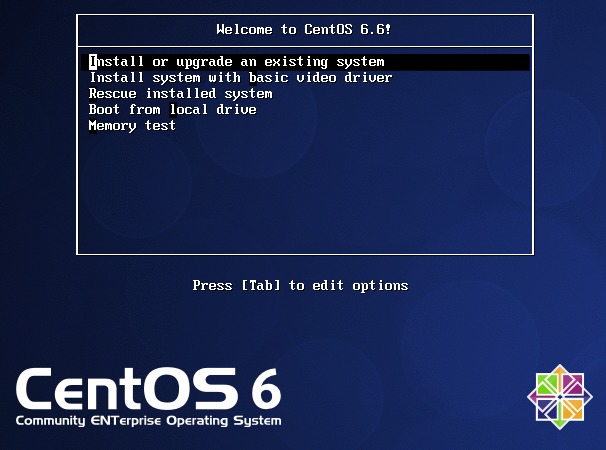
If the ISO image boots, you will see the blue CentOS Welcome boot
screen below with the large CentOS-6 banner on the screen. The
Welcome menu includes the item Rescue installed system. Use the
arrow keys to select the Rescue line and boot it by pressing Enter:
NoContinue and not Read-Only for your Linux
installation, since we need to write on the file system./mnt/sysimage, see the
Rescue CD Appendix I.Your system has been mounted under write down the
directory under /mnt that will be used to
mount and access your Linux installation.shell Start shell,
choose the first item (start a shell). It will give you a root
shell prompt in a black console screen of the Rescue system.bash root prompt, type hostname and
then cat the password file to see that this is not your own CentOS
system running. It is the Rescue system, with its own Rescue
machine name and Rescue password file.
df in this Rescue CD will confirm that your CentOS ROOT
partition /dev/sda1 is now mounted on directory /mnt/sysimage and
your CentOS HOME partition /dev/sdb1 is mounted on directory
/mnt/sysimage/home
/mnt/sysimage file systems.df to the file livecd_df.txt in your
sysadmin Base Directory in your mounted CentOS system.
/home when mounted on the Rescue CD!
Read all the words above.)ls -l on all the HOME directories in the HOME
partition (which is NOT currently mounted under /home) and note
that all the accounts have numeric owners and groups.
ls -l.livecd_passwd.txt in your
sysadmin Base Directory in your mounted CentOS system.
/home when mounted on the Rescue CD!
Read all the words above.)sum of your livecd_passwd.txt file should be 63933 2livecd_passwd.txt file you just
copied into your sysadmin directory is currently root.
chown: invalid user: 'abcd0001'chown fail when run from the Rescue CD?invalid (doesn’t exist) in the
Rescue CD environment?chroot /mnt/sysimage to obtain a root shell
running with /mnt/sysimage (your CentOS ROOT) as its ROOT directory.
chroot shell, the /mnt/sysimage
directory will used as be actual ROOT directory named /.cat the password file, you will see the password
file relative to the new chroot ROOT directory, which is your
CentOS ROOT directory, so you see your CentOS password file, not
the LiveCD password file.df command now and note the familiar list of file systems,
with sda1 mounted on the ROOT and sdb1 mounted on /home, etc.
chroot command hides the /mnt/sysimage mount point and
makes it look like the real ROOT directory as long as we stay
in this chroot shell.All programs you run from this
chrootshell will behave as if they used your CentOS file system as the ROOT. The file name/etc/passwdnow refers to your CentOS password file, not the Rescue CD password file.You could fix a broken MBR with the command
grub-installat this point, or do any other repairs to your CentOS Linux file system.
In the chroot shell you are running, pathnames work as if your
CentOS machine were running. Everything works as expected.
Confirm that you can now see your two livecd_*.txt files in your
usual CentOS sysadmin Base Directory using its usual path with
respect to the usual CentOS ROOT directory:
# cd /home/abcd0001/CST8177-14F/Assignments/assignment09
# ls -l livecd_passwd.txt livecd_df.txt(Always use your own sysadmin userid, never abcd0001.)
Note that the above files in your account are still owned by root.
Change the owner and group of the livecd_*.txt files to your
system admin account user name. The command will succeed this time.
chown succeed in the chroot shell
but fail in the Rescue CD shell before using chroot?Exit the chroot shell back to the Rescue CD shell prompt.
Run the df command again in this Rescue CD shell and note
how everything again appears mounted under /mnt/sysimage
At the Rescue CD root shell prompt, try to use the usual command to
shut down and halt the machine safely. Do not use VMware Power Off!
shutdown: Unable to shutdown systemroot shell and return to the three-itme
Rescue CD text menu.reboot Reboot from the menu.Welcome to CentOS 6.6 screen, use the VM -> Power -> Power
Off menu to power off the system without starting CentOS.
With the machine powered off:
256MB to make live snapshots quick and small.Power on your CentOS VM. You should see a familiar GNU GRUB menu.
Boot from local drive.When your CentOS has rebooted, log back in as your system admin account (using SSH if possible, since it’s nicer than the console).
Change the ownership and group to you of any remaining root owner
or group files anywhere in your CentOS system admin account. (If you’ve
done your work carefully, there should be nothing owned by root.)
root-owned files as an indication that someone has
broken into the system. Don’t leave root-owned
files in your own CentOS sysadmin account.root files in your CLS
assignment directories. This is intentional: don’t delete these!Run the Fetch and Checking Program to verify your work so far.
That is all the tasks you need to do.
Submit your mark from the CLS following the Checking Program instructions below.
Optional: Keeping your main configuration snapshots, remove any intermediate snapshots you no longer require, to free up disk space. - Be careful not to remove your current work!
See CentOS: Remote Checking, Marking, and Submitting your Work.
Use this Appendix if the Rescue CD tells you it can’t mount your
system under /mnt/sysimage and tells you to do it manually. We will
also mount some useful /dev directories) so that chroot works.
First, use the Rescue CD menus to get to a root shell prompt.
At the Rescue CD root shell prompt, mount these five file systems:
# mount /dev/sda1 /mnt/sysimage
# mount -o bind /dev /mnt/sysimage/dev
# mount -t tmpfs /dev/tmpfs /mnt/sysimage/dev/shm
# mount /dev/sdb1 /mnt/sysimage/home
# mount /dev/sdb5 /mnt/sysimage/mnt/disk02
The output of df should now be 9 lines, with five lines including the
above five /mnt/sysimage file systems.